Chromebook security in K-12 and higher ed — what telemetry you actually get
What you can monitor, what you do not get, and how AI-driven integration helps schools secure ChromeOS fleets without forcing a full Windows endpoint sensor.
Chromebooks dominate K-12 and increasingly compete in higher ed because they are simple, cheap, and secure by default. But schools running mixed fleets — Chromebooks alongside Windows and Mac — face a real architectural question: how do you get unified security visibility when one of your largest device classes does not run a traditional endpoint agent? This is the blueprint for getting it right.
What managed Chromebooks already include
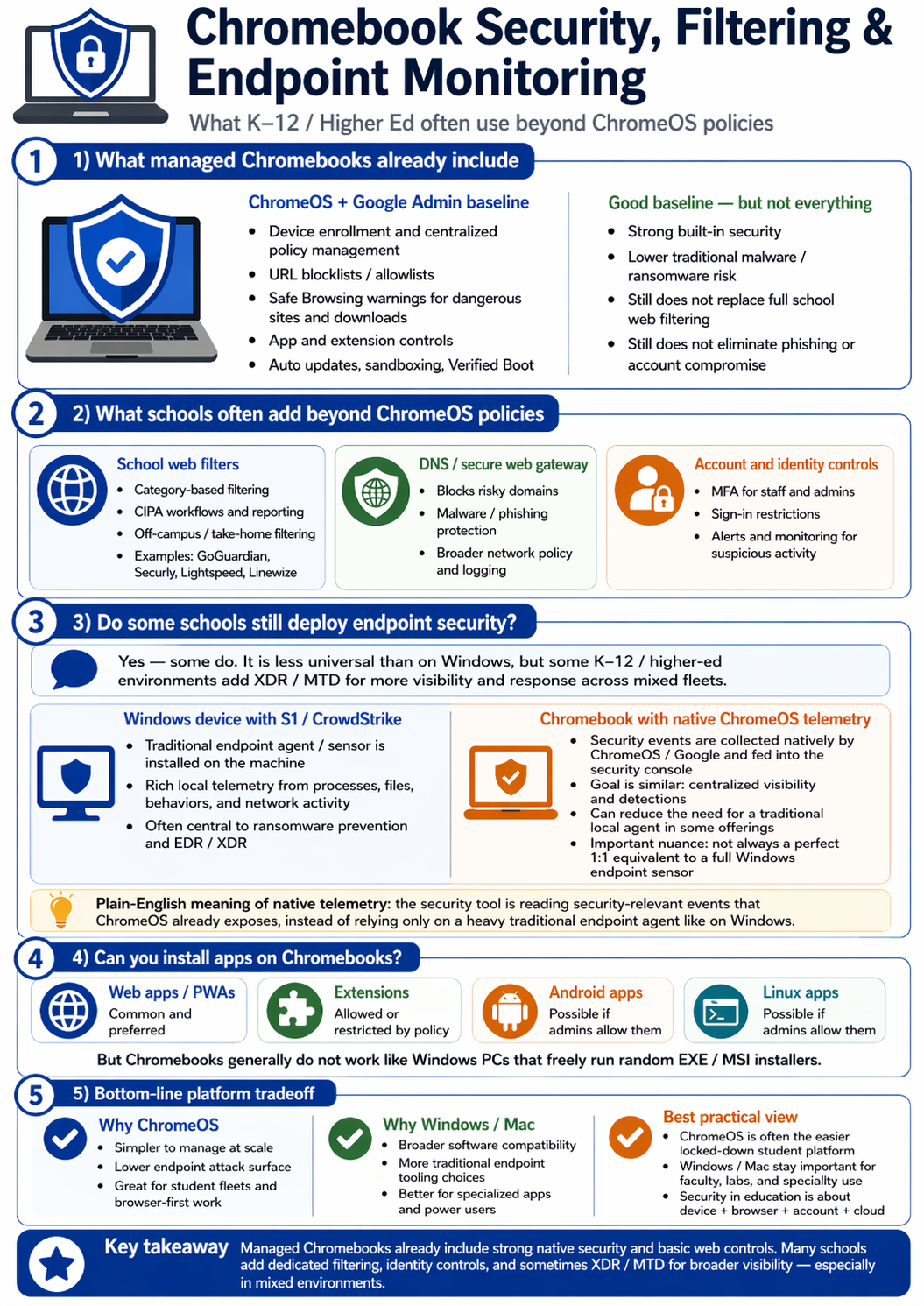
ChromeOS plus a Google Admin baseline gives schools more than most security teams realize. Device enrollment and centralized policy management, URL blocklists and allowlists, Safe Browsing warnings for dangerous sites and downloads, app and extension controls, auto-updates, sandboxing, and Verified Boot — all out of the box.
This is a strong baseline, but it is not everything. Strong built-in security and lower traditional malware and ransomware risk do not eliminate phishing or account compromise. The browser is still the primary attack surface. And the security team still needs visibility across the fleet.
What schools often add beyond ChromeOS policies
Three categories of controls almost every mature school deployment layers on top of the ChromeOS baseline.
School web filters: category-based filtering, CIPA workflows and reporting, off-campus and take-home filtering. Common vendors include GoGuardian, Securly, Lightspeed, and Linewize.
DNS or secure web gateway: blocks risky domains, malware and phishing protection, broader network policy and logging. This is where SASE or DNS-level filtering sits.
Account and identity controls: MFA for staff and admins, sign-in restrictions, alerts and monitoring for suspicious activity. This is the same identity layer the rest of the enterprise uses.
Together, these three categories cover the gaps ChromeOS leaves: content policy enforcement off-network, malicious domain blocking, and identity-layer compromise detection.
Do some schools still deploy endpoint protection on Chromebooks?
Yes — some do. It is less universal than on Windows, but some K-12 and higher ed environments add XDR or MDR for broader visibility and response across mixed fleets.
A Windows device with S1 or CrowdStrike runs a traditional endpoint agent or sensor installed on the machine. Rich local telemetry from processes, files, behaviors, and network activity. Often central to ransomware prevention and EDR or XDR workflows.
A Chromebook with native ChromeOS telemetry takes a different path. Security events are collected natively by ChromeOS, Google, and the security console. The goal is similar: centralized visibility and detections. The agent can reduce the need for a traditional local agent in some offerings. But this is important: it is not always a perfect 1:1 equivalent to a full Windows endpoint sensor.
The plain-English meaning of native telemetry is that the security tool is reading security-relevant events that ChromeOS already exposes, instead of relying only on a heavy traditional endpoint agent like on Windows.
Can you install apps on Chromebooks?
ChromeOS supports four runtime types, each with different implications.
Web apps and PWAs: common and preferred. The default delivery model for ChromeOS.
Extensions: allowed but restricted by policy. Admins can pin, allow-list, or block extensions centrally.
Android apps: possible if admins allow them. Adds capability but also broadens the threat surface.
Linux apps: possible if admins allow them. Useful for higher ed CS programs. Same caveat as Android.
But ChromeOS generally does not work like Windows PCs that freely run arbitrary EXE or MSI installers. That is the security property that makes the platform so manageable — and the reason schools deploying it at scale rarely face the ransomware events that hit Windows fleets.
The bottom-line platform tradeoff
Why ChromeOS in K-12 and higher ed: simpler to manage at scale, lower endpoint attack surface, great for student fleets and browser-first work.
Why Windows or Mac: broader software compatibility, more traditional endpoint tooling choices, better for specialist apps and power users.
Best practical view: ChromeOS is the easier locked-down student platform. Windows or Mac stays important for faculty, labs, and specialist use. The security is education is about device plus browser plus cloud.
The security architecture should match. Native ChromeOS telemetry and policy-layer controls for the student fleet. Traditional endpoint security for Windows and Mac. Identity and network controls unify both.
Native telemetry, XDR monitoring, and what you do not get
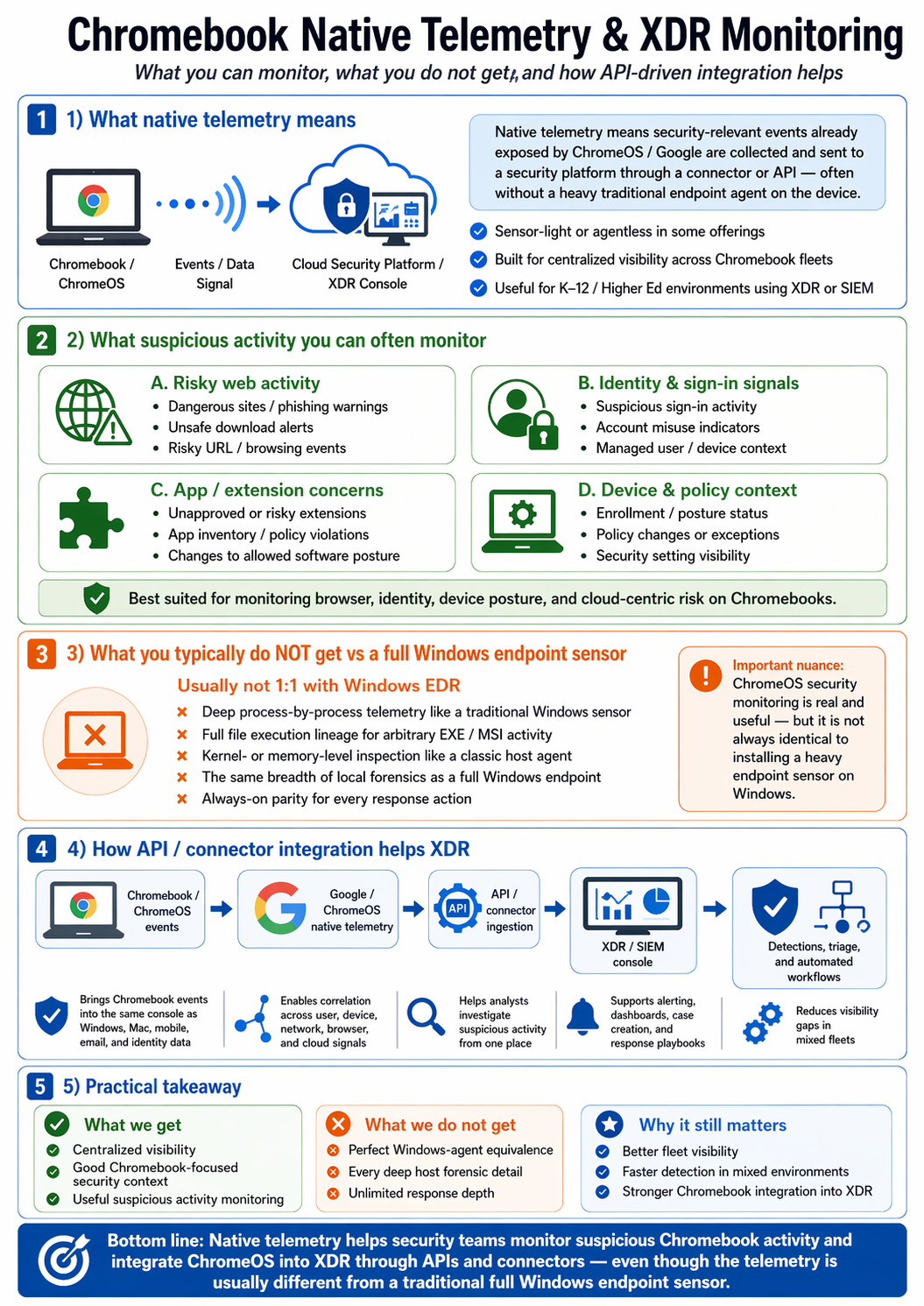
Native telemetry means security-relevant events already exposed by ChromeOS and Google are collected and sent to a security platform through a connector or API — often without a heavy traditional endpoint agent on the device.
What suspicious activity you can often monitor: risky web activity (dangerous sites and phishing warnings, blocked download alerts, risky URL or browsing events), identity and sign-in signals (suspicious sign-in activity, account misuse indicators, managed user or device context), app and extension concerns (unapproved or risky extensions, app inventory and policy violations, changes to allowed software posture), device and policy context (enrollment and posture status, policy changes or exceptions, security setting visibility).
What you typically do NOT get versus a full Windows endpoint sensor — usually not 1:1 with Windows EDR. You do not get deep process-by-process telemetry like a traditional Windows sensor. You do not get full file execution lineage for arbitrary EXE or MSI activity. You do not get kernel- or memory-level inspection like a classic host agent. You do not get the same breadth of local forensics as a full Windows endpoint sensor. You do not get the always-on parity for every response action.
Important nuance: ChromeOS security monitoring is real and useful — but it is not always identical to installing a heavy endpoint sensor on Windows.
How API and connector integration helps XDR
The integration pattern is straightforward. ChromeOS and ChromeOS events flow through Google ChromeOS native telemetry into an API or connector ingestion layer, which feeds an XDR or SIEM console where detections, triage, and automated workflows run.
This brings Chromebook events into the same console as Windows, Mac, mobile, email, and identity data. It enables correlation across user, device, network, browser, and cloud signals. It helps analysts investigate suspicious activity from one place. It supports alerting, dashboards, case creation, and response playbooks. And it reduces visibility gaps in mixed fleets — the security team sees the whole school, not just the half that runs Windows.
Practical takeaway for school security teams
What you get: centralized visibility, good Chromebook-focused security context, useful suspicious activity monitoring.
What you do not get: perfect Windows-agent equivalence, every deep host forensic detail, unlimited response depth.
Why it still matters: better fleet visibility, faster detection in mixed environments, stronger Chromebook integration into XDR.
Native telemetry helps security teams monitor suspicious Chromebook activity and integrate ChromeOS into XDR through APIs and connectors — even though the telemetry is usually different from a traditional full Windows endpoint sensor. For schools running mixed fleets, this is the architectural reality. The right strategy is to use what each platform exposes natively, integrate it through the same XDR or SIEM console, and stop treating Chromebook as a blind spot just because it does not run the same sensor as your other devices.
Unsafe downloads, phishing, and centralized management
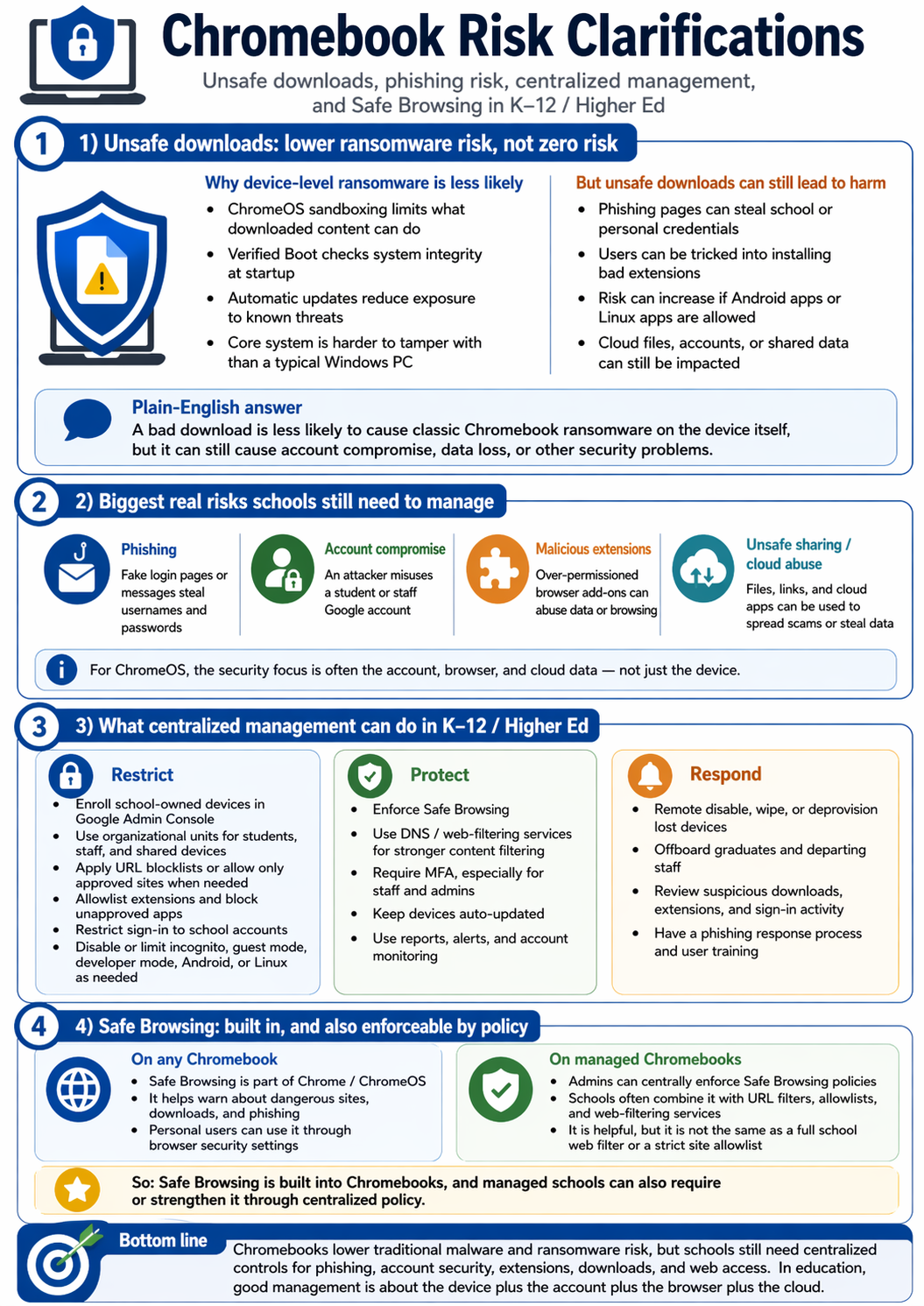
Lower ransomware risk does not mean zero risk. Why device-level ransomware is less likely on Chromebooks: ChromeOS sandboxing limits what downloaded content can do, Verified Boot checks system integrity at startup, automatic updates reduce exposure to known threats, the core system is harder to tamper with than a typical Windows PC.
But unsafe downloads can still lead to harm. Phishing pages can steal school or personal credentials. Users can be tricked into installing bad extensions. Risk can increase if Android apps or Linux apps are allowed. Cloud files, accounts, or shared data can still be impacted.
The biggest real risks schools still need to manage: phishing (fake login pages or messages steal usernames and passwords), account compromise (attacker misuses a student or staff account), malicious extensions (over-permissioned browser add-ons can abuse data or browsing), unsafe sharing or cloud abuse (files, links, and cloud apps can be used to spread scams or steal data).
For ChromeOS, the security focus is often the account, browser, and cloud data — not just the device.
What centralized management can do — and where to draw the line
Three categories of action.
Restrict: enroll school-owned devices in Google Admin Console, use organizational units for students, staff, and shared devices, apply URL blocklists or allow only approved sites when needed, allowlist extensions and block unapproved apps, restrict sign-in to school accounts, disable guest mode, developer mode, Android, or Linux as appropriate.
Protect: enforce Safe Browsing, use DNS or web-filtering services for stronger content filtering, require MFA especially for staff and admins, keep devices auto-updated, set reports, alerts, and account monitoring.
Respond: remote disable, wipe, or deprovision lost devices, offboard graduates and departing staff, review suspicious downloads, extensions, and sign-in activity, have a phishing response process and user training.
Safe Browsing is built into Chromebooks, and managed schools can also require or strengthen it through centralized policy. On any Chromebook: Safe Browsing is part of Chrome and ChromeOS, it helps warn about dangerous sites, downloads, and phishing, personal users can use it through browser security settings. On managed Chromebooks: admins can centrally enforce Safe Browsing policies, schools often combine it with URL filters, allowlists, and web-filtering services, it is helpful but it is not the same as a full school web filter or a strict site allowlist.
The bottom line: Chromebooks lower traditional malware and ransomware risk, but schools still need centralized controls for phishing, account security, extensions, downloads, and web access. In education, good management is about the device plus the account plus the browser plus the cloud.